
Shopify Google Search Console: Complete Setup Guide

Modest Mitkus · April 22, 2026
Understanding how your Shopify store performs in Google search results is crucial for growing your online business. Google Search Console provides invaluable insights into how Google crawls, indexes, and ranks your store's pages. By connecting Shopify Google Search Console properly, you gain access to critical data about your organic search performance, identify technical SEO issues, and discover opportunities to improve your visibility. This comprehensive guide walks you through everything you need to know about setting up and leveraging Google Search Console for your Shopify store in 2026.
Why Shopify Store Owners Need Google Search Console
Google Search Console serves as your direct communication channel with Google's search engine. For Shopify merchants, this free tool reveals exactly how Google sees your store and which products or pages attract organic traffic.
Critical Data You Can't Get Elsewhere
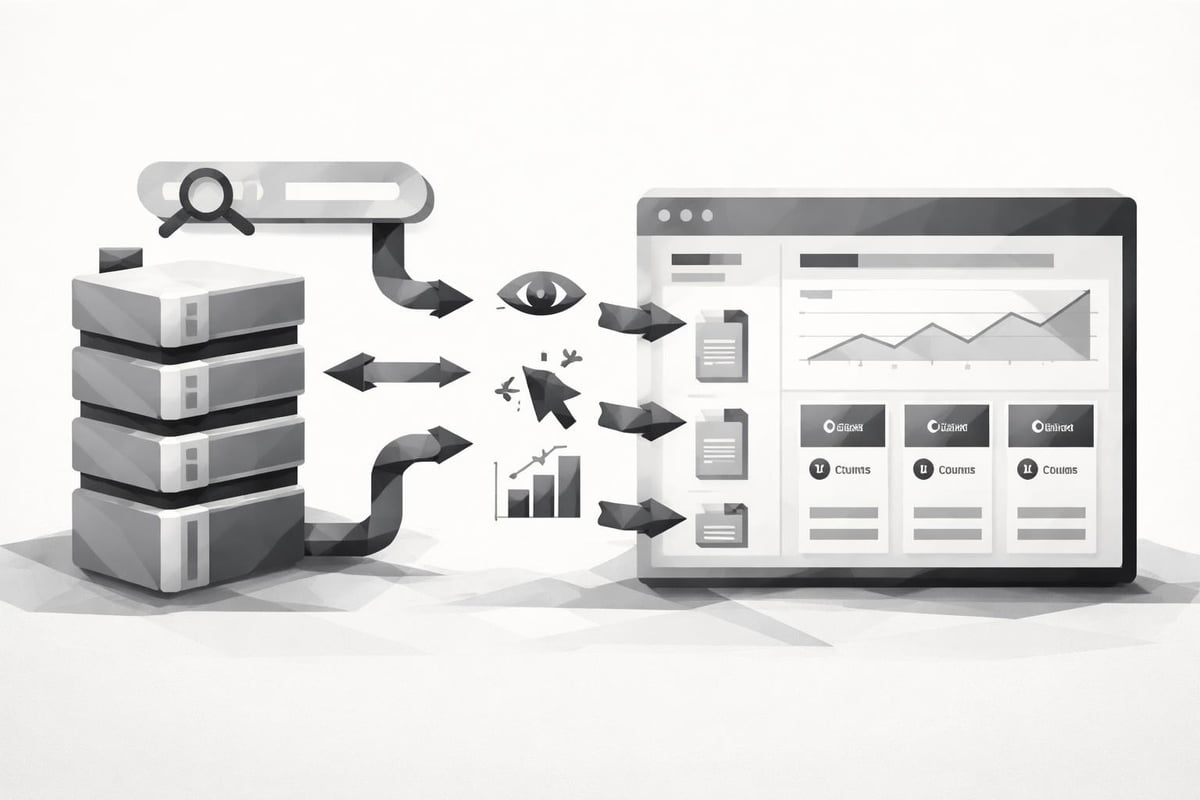
Unlike Google Analytics, which tracks user behavior after they arrive on your site, Google Search Console shows you what happens before visitors click through. You'll discover which search queries trigger your product pages in search results, your average position for specific keywords, and your click-through rates from search results pages.
Key metrics available through Shopify Google Search Console integration:
- Total impressions your store receives in search results
- Click-through rates for individual pages and queries
- Average search position for target keywords
- Mobile usability issues affecting your store
- Core Web Vitals performance metrics
- Security issues and manual penalties
The platform also alerts you to indexing problems that prevent your products from appearing in search results. This early warning system helps you fix technical issues before they impact your revenue.
Setting Up Google Search Console for Your Shopify Store
The verification process for Shopify Google Search Console requires adding a verification code to your store's theme files. This confirms you own the domain and grants you access to search performance data.
Domain Property vs URL Prefix Verification
Google offers two verification methods: domain property and URL prefix. For Shopify stores, the URL prefix method typically works more reliably because it doesn't require DNS record modifications that Shopify's hosting structure sometimes complicates.
Start by creating a Google Search Console account if you don't already have one. Navigate to the verification setup process and select "Add property." Choose the URL prefix option and enter your complete store URL, including the https:// protocol.
HTML Tag Verification Method
- Copy the meta verification tag provided by Google Search Console
- Log into your Shopify admin panel
- Navigate to Online Store > Themes
- Click Actions > Edit code on your active theme
- Open the theme.liquid file from the Layout folder
- Paste the verification tag between the
<head>and</head>tags - Save the file and return to Google Search Console
- Click the Verify button
The step-by-step verification guide provides additional screenshots for each step. Once verified, Google begins collecting data immediately, though it takes a few days before meaningful insights appear in your dashboard.
| Verification Method | Difficulty | Recommended For |
|---|---|---|
| HTML Tag | Easy | Most Shopify users |
| DNS Record | Advanced | Custom domain experts |
| Google Analytics | Easy | Stores already using GA4 |
| Google Tag Manager | Medium | Advanced marketers |
Submitting Your Shopify Sitemap to Google Search Console
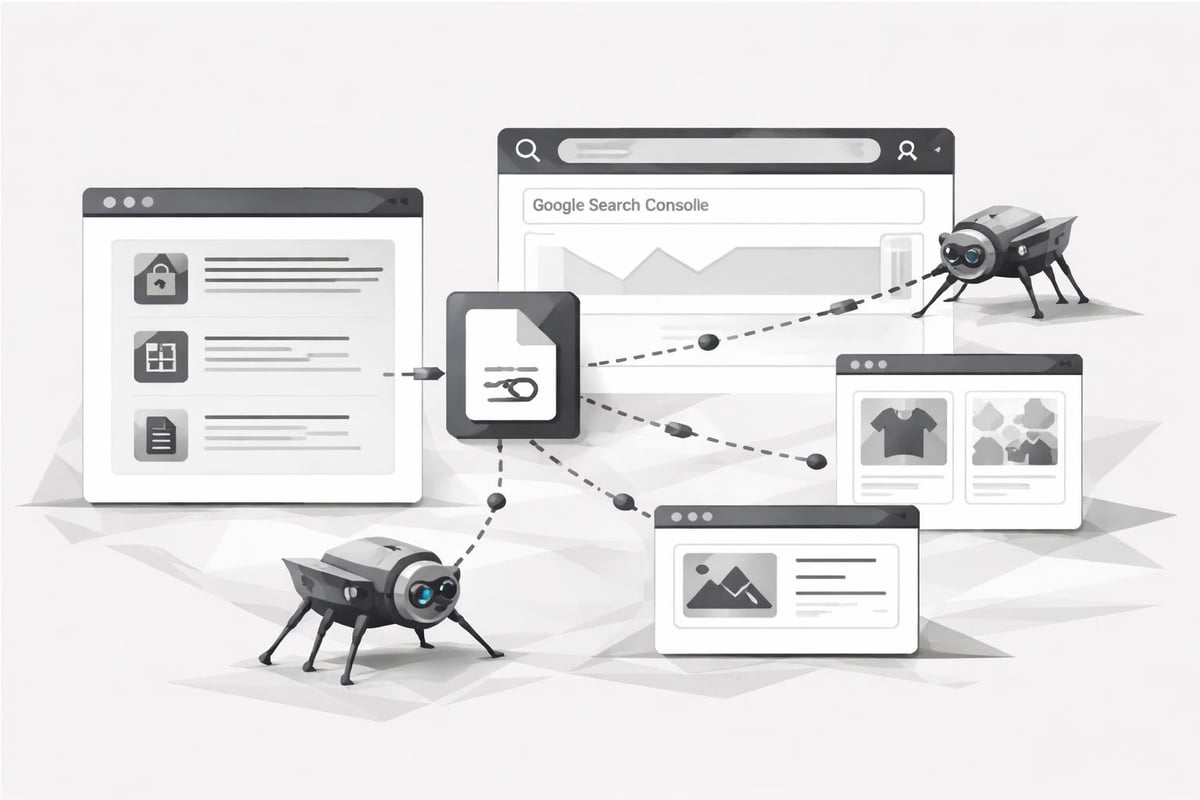
Your sitemap acts as a roadmap that helps Google discover and index all your important pages. Shopify automatically generates a sitemap at yourdomain.com/sitemap.xml, which includes your products, collections, blog posts, and pages.
Finding and Submitting Your Sitemap
Access your automatically generated sitemap by adding /sitemap.xml to your store's URL. You'll see an XML file listing all indexable pages organized by content type. To submit this to Google Search Console, navigate to the Sitemaps section in the left sidebar.
Enter "sitemap.xml" in the submission field and click Submit. Google will begin crawling the URLs listed in your sitemap. This process helps ensure that new products and pages get discovered quickly rather than waiting for Google to find them through external links.
Common sitemap URLs for Shopify stores:
- /sitemap.xml (main sitemap index)
- /sitemap_products_1.xml (product pages)
- /sitemap_collections_1.xml (collection pages)
- /sitemap_pages_1.xml (standard pages)
- /sitemap_blogs_1.xml (blog content)
The monitoring guide from Tillison Consulting emphasizes checking your sitemap status regularly. If Google reports errors, investigate immediately to prevent indexing problems.
Monitoring Your Shopify Store's Search Performance
Once Google Search Console collects sufficient data, the Performance report becomes your most valuable resource. This section reveals exactly how searchers find and interact with your store in Google results.
Understanding Performance Metrics
The Performance report displays four primary metrics: total clicks, total impressions, average click-through rate (CTR), and average position. Each metric tells a different part of your organic search story.
Clicks represent actual visits from Google search results. Impressions count how many times your store appeared in search results, regardless of whether users clicked. The CTR percentage shows how compelling your titles and descriptions are, while average position indicates where you typically rank.
Filter this data by query, page, country, device, or date range to uncover specific insights. For example, filtering by mobile devices might reveal optimization opportunities if your mobile CTR lags behind desktop performance.
Identifying High-Potential Keywords
Sort queries by impressions to find search terms where you appear frequently but receive few clicks. These represent high-potential optimization targets. If you rank on page two (positions 11-20) with high impressions, improving your ranking by just a few positions could significantly increase traffic.
The organic performance analysis guide explains how to identify these opportunities systematically. Look for queries where you rank between positions 5-15 with decent impression volume. These are closest to breakthrough positions where organic traffic increases exponentially.
Fixing Technical SEO Issues in Search Console
The Coverage report highlights indexing problems preventing your pages from appearing in search results. For Shopify stores, common issues include blocked resources, redirect chains, and duplicate content.
Common Shopify Indexing Challenges
Duplicate content often affects Shopify stores because products appear in multiple collections. While this provides good user experience, Google may struggle to determine the canonical version. Shopify's built-in canonical tags typically handle this, but verify in the Coverage report.
Blocked by robots.txt errors indicate that your robots.txt file prevents Google from accessing certain resources. Check your Shopify settings to ensure critical pages aren't accidentally blocked. The checkout and customer account pages should be blocked, but product and collection pages must remain accessible.
Soft 404 errors occur when pages return a success code but contain no content. This commonly happens with out-of-stock products. Consider implementing back-in-stock notifications rather than displaying empty product pages.
| Issue Type | Impact | Solution |
|---|---|---|
| Duplicate Content | Diluted ranking signals | Verify canonical tags |
| 404 Errors | Lost ranking opportunities | Redirect to relevant pages |
| Mobile Usability | Reduced mobile rankings | Fix responsive design issues |
| Core Web Vitals | Lower search rankings | Optimize page speed and interactivity |
Regular monitoring through the verification and setup process helps catch issues before they impact your organic traffic significantly.
Leveraging Search Console Data for Content Strategy
Your Shopify Google Search Console data reveals exactly what customers search for before finding your products. This intelligence should drive your content creation and product optimization efforts.
Product Description Optimization
Review the Queries report to identify long-tail search terms driving impressions but low clicks. These specific phrases indicate customer intent. If "waterproof hiking boots women size 8" generates impressions but your average position is 15, optimize your product titles and descriptions to target this phrase more effectively.
Create dedicated blog content targeting informational queries related to your products. If Search Console shows impressions for "how to clean leather boots," publish a comprehensive guide addressing this question. SEO content creation becomes far more effective when based on actual search data rather than assumptions.
AI-powered platforms streamline this optimization process by automatically identifying keyword opportunities from your Search Console data and generating optimized content. RankPill analyzes your search performance and competitor keywords, then creates targeted blog posts that address the exact queries bringing impressions to your store, helping you convert those impressions into actual organic traffic.
Blog Content Planning
Filter performance data by your blog subdirectory (/blogs/) to see which topics resonate with searchers. High-impression, low-CTR blog posts need better titles and meta descriptions. Low-impression posts covering important topics may need internal linking improvements or content updates to match current search intent.
Compare your top-performing blog posts to understand what content types work best. Do how-to guides outperform product comparisons? Do listicles generate more clicks than in-depth tutorials? Let data guide your content strategy decisions rather than following generic best practices.
Connecting Google Search Console with Google Analytics
While Shopify Google Search Console shows pre-click data, Google Analytics tracks post-click behavior. Connecting these tools provides a complete picture of your organic search performance.
Setting Up the Integration
Within Google Analytics 4, navigate to Admin > Property Settings > Search Console Links. Follow the prompts to connect your verified Search Console property. This integration adds Search Console dimensions to your Analytics reports.
Benefits of connecting both platforms:
- See which Search Console queries lead to conversions
- Identify high-bounce-rate landing pages from organic search
- Track assisted conversions from organic search traffic
- Analyze user behavior patterns by search query
- Calculate ROI for SEO efforts with revenue data
The comprehensive setup tutorial walks through connecting multiple Google services to create a cohesive analytics ecosystem for your Shopify store.
Advanced Search Console Features for Shopify
Beyond basic performance monitoring, Google Search Console offers advanced features that sophisticated Shopify merchants leverage for competitive advantage.
URL Inspection Tool
This powerful feature shows exactly how Google crawls and indexes individual pages. Enter any URL from your store to see its indexing status, when Google last crawled it, and whether any issues prevent indexing.
Use URL Inspection when launching new products to request immediate indexing rather than waiting for Google's regular crawl schedule. After fixing technical issues, request re-indexing through this tool to update Google's index faster.
Manual Actions and Security Issues
The Security & Manual Actions sections alert you to serious problems requiring immediate attention. Manual actions represent penalties applied by Google's human reviewers for policy violations. While rare for legitimate Shopify stores, monitoring this section provides peace of mind.
Security issues notifications warn about hacking attempts, malware, or phishing content. Shopify's robust security typically prevents these problems, but the alert system provides an additional safety layer.
Enhancement Reports
Google Search Console's Enhancement reports track specific features like product schema markup, breadcrumbs, and site search elements. For Shopify stores, the Product markup report confirms that Google correctly reads your product structured data.
Valid product schema helps your listings appear in rich results with prices, availability, and review ratings displayed directly in search results. If the Enhancement report shows errors, review your theme's structured data implementation or consult with a Shopify expert.
Using Search Console Data for Link Building
The Links report within Search Console reveals which external sites link to your Shopify store and which of your pages attract the most backlinks. This intelligence informs your link building strategy.
Analyzing Your Backlink Profile
Sort your top linked pages to identify content that naturally attracts links. If your buying guides receive more backlinks than product pages, create more guide-style content. Understanding what earns links helps you replicate success.
Review your top linking sites to identify relationship opportunities. If industry blogs frequently link to your content, consider reaching out for guest posting opportunities or product collaborations. The backlink building strategies that work best align with your existing link profile patterns.
Internal Linking Insights
Search Console also reports internal linking patterns. Pages with few internal links may struggle to rank because Google's crawlers have difficulty discovering them. Identify important product or collection pages with limited internal links and add relevant links from blog posts or your navigation structure.
Monitoring Core Web Vitals Through Search Console
Google's Core Web Vitals directly impact search rankings, particularly for competitive keywords. The Core Web Vitals report in Search Console tracks three critical user experience metrics across your Shopify store.
Understanding the Three Core Vitals
Largest Contentful Paint (LCP) measures loading performance. Google recommends LCP under 2.5 seconds. For Shopify stores, large product images often cause slow LCP. Optimize images by compressing files and using modern formats like WebP.
First Input Delay (FID) tracks interactivity. Users should be able to click buttons or links within 100 milliseconds. Heavy JavaScript from apps can increase FID. Audit your installed apps and remove unused ones.
Cumulative Layout Shift (CLS) measures visual stability. Elements shouldn't jump around as the page loads. Reserve space for images and ads to prevent layout shifts that frustrate users.
| Core Web Vital | Target | Common Shopify Issues |
|---|---|---|
| LCP | < 2.5s | Large unoptimized images |
| FID | < 100ms | Excessive apps and scripts |
| CLS | < 0.1 | Dynamic content loading |
The mobile usability guide emphasizes that poor Core Web Vitals particularly impact mobile rankings, where most Shopify store traffic originates.
Regular Maintenance and Monitoring Schedules
Setting up Shopify Google Search Console is just the beginning. Consistent monitoring catches issues early and identifies optimization opportunities before competitors capitalize on them.
Weekly Monitoring Tasks
Check your Performance report weekly to track ranking changes for target keywords. Sudden drops in clicks or impressions often indicate technical problems or algorithm updates requiring attention. Monitor the Coverage report for new indexing errors.
Weekly checklist:
- Review top 10 performing pages for ranking changes
- Check Coverage report for new errors
- Monitor clicks and impressions trends
- Identify new high-impression, low-CTR opportunities
Monthly Deep Dives
Monthly reviews should include comprehensive analysis of query patterns, seasonal trends, and content performance. Export Performance data to spreadsheets for detailed analysis across multiple date ranges.
Compare month-over-month performance to identify growing and declining traffic sources. Investigate pages losing traffic to determine whether content updates or technical fixes are needed. Analyzing website content performance through Search Console data reveals exactly which pages need optimization priority.
Mastering Shopify Google Search Console transforms how you approach SEO for your online store by providing data-driven insights into your organic search performance. By properly verifying your store, submitting your sitemap, and regularly monitoring performance metrics, you'll identify exactly which optimization efforts generate the highest return. If you're looking to scale your content creation while maintaining SEO best practices, RankPill automates the entire process by analyzing your Search Console data, conducting competitor keyword research, and publishing optimized content that drives organic traffic to your Shopify store consistently.
Unlock Traffic on Autopilot
Grow organic traffic on autopilot. RankPill will research, write, optimize, and publish articles to your website daily.
 WordPress